Faster Google Maps load times
- Google Maps
- Javascript
- Optimization
- React
- TypeScript
Google Maps is notoriously slow. The moment you add a Google Map to your page you can cut your Lighthouse performance score in half.

There are several ways you can fight with it:
- Add
async/deferto your Google script - certainly helps, but not by much. This technique is very common so I won’t be talking about it. - Loading the map only when a user scrolls to it. This works well when the map is located below the fold. Code.
- Using a static Google Maps image. There are cases when you might not need an interactive map and an image is all you need. The API for it is surprisingly versatile. Code.
- Skipping fonts loading. Whenever you include the Google Maps script, it automatically fetches a Roboto font. The map works perfectly fine without it, you can shave off a decent amount of time if you know how to block the font. Code.
- Using a static preview of the map and then loading a full version on click. Perhaps the best technique when a map is located above the fold. Code.
By using these tricks you can achieve much better page performance (and SEO!) and save money on the costly Google Maps API.
Loading map on scroll (Code)
The idea here is to skip loading script until a user scrolls to it. This can be achieved using the IntersectionObserver API.
Below is an example implementation:
const useObserveVisibility = (element: Element | null): boolean => {
	const [visible, setVisible] = useState<boolean>(false)
	console.log(element)
	useEffect(() => {
		if (!element) return

		const observer = new IntersectionObserver(
			(changes) => {
				changes.forEach((change) => {
					if (change.isIntersecting) {
						setVisible(true)
					}
				})
			},
			{
				root: null, // relative to document viewport
				rootMargin: "0px", // margin around root
				threshold: 0, // visible amount of item shown in relation to root
			},
		)
		observer.observe(element)
		return () => {
			observer.disconnect()
		}
	}, [element])
	return visible
}

function ObserverExample() {
	const [mapNode, mapRef] = useRefWithCallback()
	const showMap = useObserveVisibility(mapNode)
	return (
		<div>
			<div style={{ height: 1000, backgroundColor: "blue" }} />
			<div ref={mapRef} style={{ height: MAP_HEIGHT }}>
				{showMap && <SomeMap />}
			</div>
		</div>
	)
}
Using Maps Static API (Code)
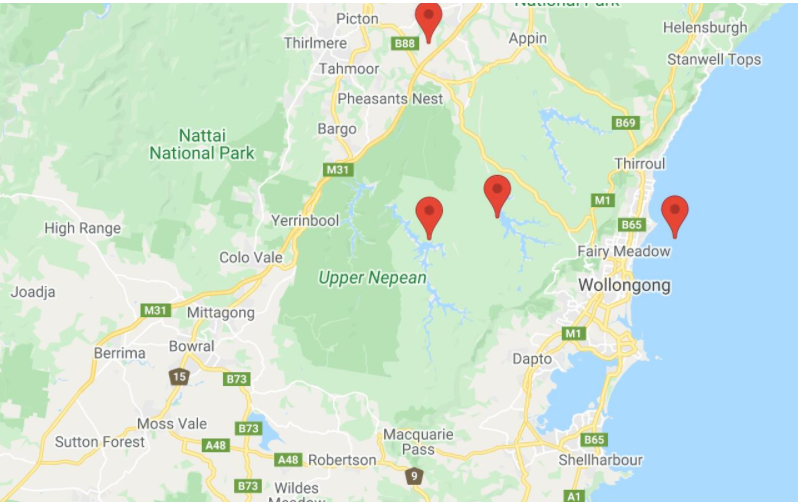
Instead of loading the heavy script, at times, we can get away with loading only an image of the map. Google provides a way to add markers to it as well.
One of the unpleasant gotchas is that image resolution cannot go above 640px (1280px for x2 scale). Which means that an image is blurry.
Another interesting observation is that while this API is fast, you can make the image load 2x as fast by placing it behind a CDN. You can save some money this way as well.
You can read more about this API here.
Below is an example implementation:
export default function MapsStaticApiExample({
  markers,
  height,
  width,
  center,
  zoom,
}: Props) {
  return (
    <img
      alt="Map Preview"
      style={{
        objectFit: "cover",
        objectPosition: "50% 50%",
        position: "absolute",
        ...
      }}
      src={`https://maps.googleapis.com/maps/api/staticmap?${queryString.stringify(
        {
          center: `${center.lat},${center.lng}`,
          zoom,
          size: `${width}x${height}`,
          key: process.env.REACT_APP_MAPS_KEY!,
          scale: 2,
          format: "jpg",
          markers: `color:red|size:mid|${markers
            .map((m) => `${m.lat},${m.lng}`)
            .join("|")}`,
        }
      )}`}
    />
  );
}
Skipping font load (Code)
Whenever you include the Google Maps script, it automatically loads Roboto fonts. IMHO maps look just fine without them and the extra HTTP requests are not necessary when every byte and millisecond counts.
Below is an example implementation:
// font URL looks something like https://fonts.gstatic.com/s/roboto/v27/KFOmCnqEu92Fr1Mu4mxKKTU1Kg.woff2

const usePreventGoogleFontLoad = () => {
	useEffect(() => {
		const head = document.getElementsByTagName("head")[0] as HTMLHeadElement

		// Save the original insertBefore function
		const insertBefore = head.insertBefore

		// Replace insertBefore with a function that's going
		// to see what's inserted and skip if it's the designated font
		head.insertBefore = function insertBeforeNew<T extends Node>(
			newElement: T,
			referenceElement: Node,
		): T {
			if (
				(newElement as any).href &&
				(newElement as any).href.indexOf("//fonts.googleapis.com/css?family=Roboto") > -1
			) {
				// eslint-disable-next-line no-console
				console.info("Font loading is skipped")
				return newElement
			}

			insertBefore.call(head, newElement, referenceElement)
			return newElement
		}
		return () => {
			// restore original
			head.insertBefore = insertBefore
		}
	}, [])
}

function SkipFontExample() {
	usePreventGoogleFontLoad()
	return (
		<div>
			<SomeMap />
		</div>
	)
}
Using an image placeholder and loading the map on click (Code)
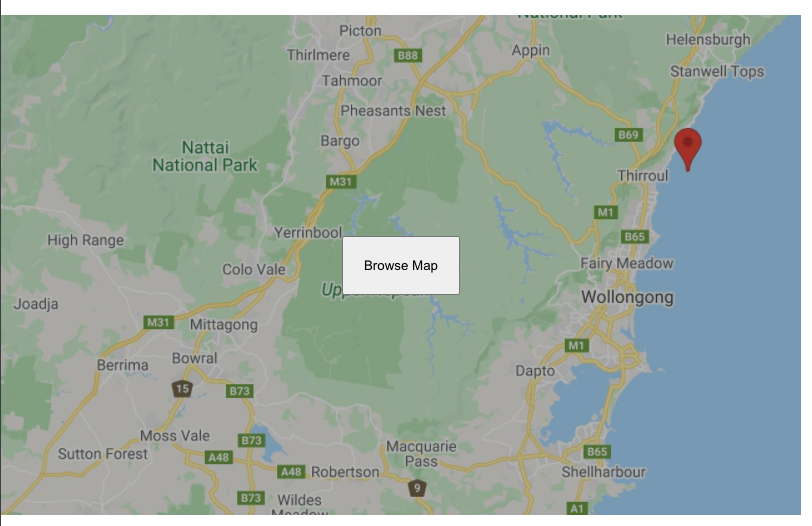
If you want to provide users with a dynamic map but also care about page performance you can go with a hybrid approach and show a static image with a button to load the full version.
Below is an example implementation:
function PlaceholderMapPage() {
	const [useDynamicMap, setUseDynamicMap] = useState<boolean>(false)
	const staticMap = (
		<div
			onClick={() => setUseDynamicMap(true)}
			style={{
				height: MAP_HEIGHT,
				width: WIDTH,
				cursor: "pointer",
				position: "relative",
			}}
		>
			<StaticImageMapImage
				markers={MARKERS}
				center={CENTER}
				height={MAP_HEIGHT}
				width={WIDTH}
				zoom={10}
			/>
			<div
				style={{
					display: "flex",
					justifyContent: "center",
					alignItems: "center",
					height: "100%",
					position: "relative",
				}}
			>
				<div
					style={{
						position: "absolute",
						backgroundColor: "black",
						opacity: 0.3,
						height: "100%",
						width: "100%",
					}}
				/>
				{!useDynamicMap && (
					<button
						style={{ position: "absolute", padding: 20 }}
						onClick={() => setUseDynamicMap(true)}
					>
						Browse Map
					</button>
				)}
			</div>
		</div>
	)

	if (!useDynamicMap) return staticMap

	return (
		<div style={{ height: MAP_HEIGHT, width: WIDTH, position: "relative" }}>
			<SomeMap loadingElement={staticMap} />
		</div>
	)
}
These techniques can be combined any way you want to get even better results. For example, you can use observer API and use a static image as a placeholder.
You can read the full code at https://github.com/TheRusskiy/google-maps-optimizations.
Thank you for reading!